

Sign in to the dashboard
The dashboard requires a login, and a fresh install has none. Geass does not create a default password and does not generate one. You create the first user by saving a Kubernetes Secret, then open the dashboard through a tunnel from your own machine. This page covers that first sign-in, how the geass command line signs in once you have a dashboard login, the two roles, and how to rotate credentials.
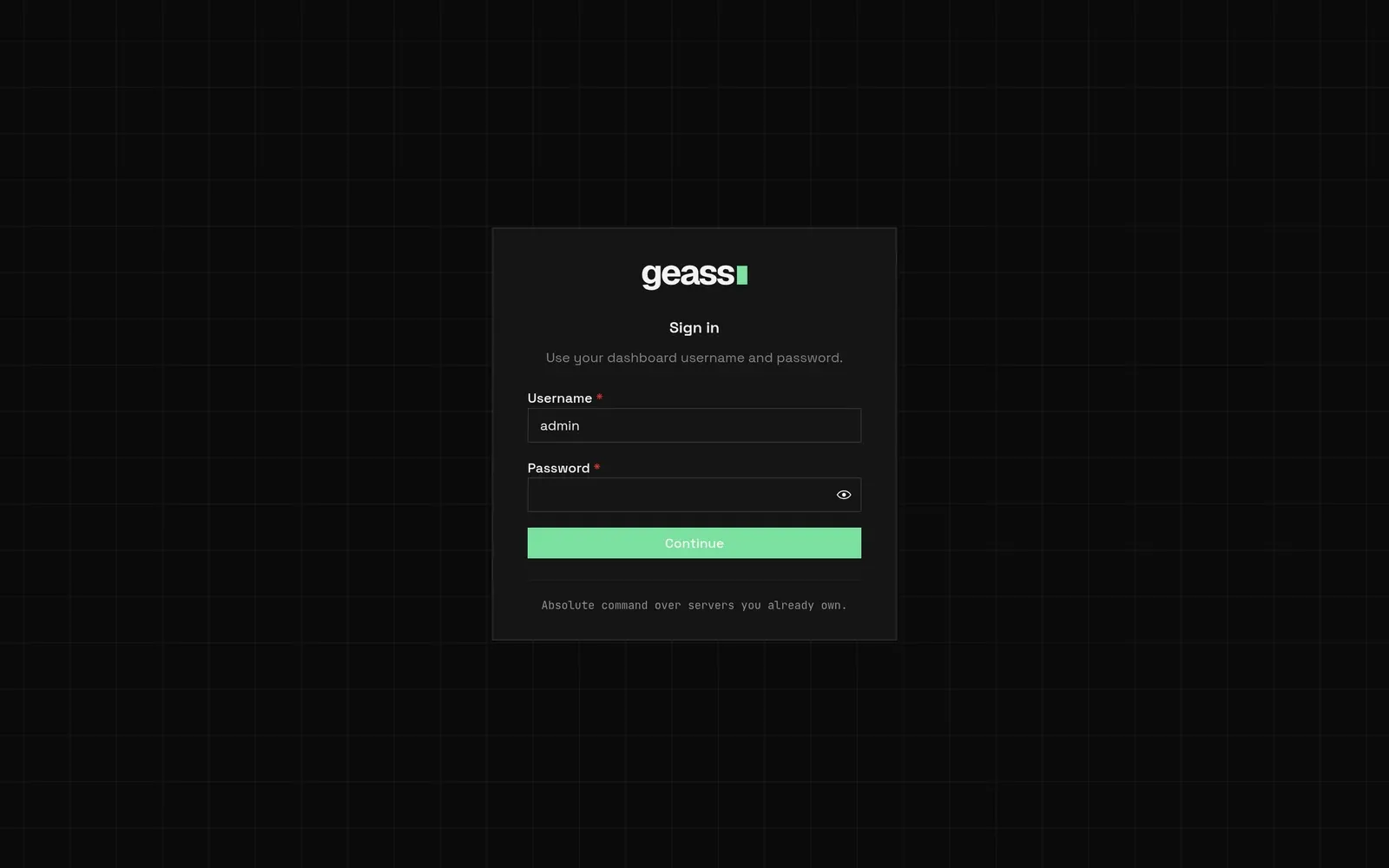 Screenshot with example data.
Before you start
Section titled “Before you start”- A finished install. The operator pod
geass-controller-managermust be running. - SSH access to the control plane, and
sudothere.
Create the first user
Section titled “Create the first user”-
On the control plane, save this Secret as
dashboard-auth.yamland replaceCHANGE_MEwith a password you choose:dashboard-auth.yaml apiVersion: v1kind: Secretmetadata:name: geass-dashboard-authnamespace: geass-systemtype: OpaquestringData:users: |[{"username":"admin","password":"CHANGE_ME","role":"admin"}]The
usersvalue is a JSON array. Escape any"or\in the password as JSON requires. -
Apply it and remove the file, because it holds the password in plain text:
Terminal window sudo k3s kubectl apply -f dashboard-auth.yamlrm dashboard-auth.yaml
Geass reads the Secret when someone signs in, so the operator does not need a restart. The first sign-in attempt replaces each plain-text password in the Secret with a bcrypt hash.
Reach the dashboard
Section titled “Reach the dashboard”The dashboard is served by the operator on port 8085, behind the ClusterIP Service geass-geass-dashboard. Nothing publishes it after the install, so you reach it through a tunnel:
-
From your machine, open an SSH session that forwards a local port to the server’s loopback address:
Terminal window ssh -L 8085:127.0.0.1:8085 root@203.0.113.10 -
In that session, forward the Service to the server’s loopback address and leave the command running:
Terminal window sudo k3s kubectl -n geass-system port-forward svc/geass-geass-dashboard 8085:8085 -
Open
http://localhost:8085in your browser.
If you already run kubectl on your own machine against this cluster, run the port-forward command there and skip the SSH forward. K3s writes its kubeconfig to /etc/rancher/k3s/k3s.yaml on the server with the address 127.0.0.1; change that address to one your machine can reach, and keep 6443/tcp open to it.
Once you are signed in, publish the dashboard on a domain from Settings → Domain and use that address from then on. See Connect a domain.
Sign in
Section titled “Sign in”The page shows the title Sign in, a Username field (pre-filled with admin), a Password field and a Continue button. Enter the user from your Secret.
Sessions last 12 hours. Usernames are matched without regard to letter case and surrounding spaces. After five failed attempts for one username within a minute, that username is locked for one minute; the page still says invalid username or password. The lock is saved in the Secret, so it survives an operator restart. Only usernames in your Secret are recorded, and a record is dropped once its minute is over. Separately, a client that connects directly from a public address and fails 20 sign-ins within a minute is refused for a minute, with the same message. Behind a proxy or a tunnel every visitor arrives from one private address, so that limit does not apply there.
To sign out, open the account menu at the top right (it shows your initial) and choose Sign out. Signing out ends every session of that user, in every browser, not only the current one.
Sign in from the command line
Section titled “Sign in from the command line”The geass command line has no password. It signs in with a code that you approve in the dashboard, so you need a dashboard login first. Install the command line (see Install Geass), then run it with the address of your dashboard:
geass login --url https://geass.example.comFor the first session, before you have a domain, run the tunnel from Reach the dashboard and use --url http://localhost:8085.
geass loginprints a code such asBCDF-GHJKand the address<dashboard>/device, and opens that page in your browser when it runs in a terminal. Add--no-browserto stop that.- Sign in to the dashboard as an
adminif it asks. The page Sign in the command line names the machine that is asking, such asgeass CLI on laptop. Check that the code on the page is the one in your terminal. Only approve a code you started. - Choose Access: Read only, including logs (recommended), Read only, without logs or Full access. Choose Expires: 7 days, 30 days (the default) or 90 days. Choose Approve.
The terminal then prints Signed in to ... as token:CLI: geass CLI on laptop and saves the token in config.json in the geass folder of your user configuration directory (on Linux ~/.config/geass/config.json), with mode 0600. The code is good for 10 minutes. A viewer cannot approve, and neither can an API token, so a leaked token cannot mint another one.
The approval creates an API token, which appears in Settings → Tokens as CLI: geass CLI on <machine>. Revoke it there to end it. geass logout only forgets it on your machine. For scripts and CI, which cannot approve a code, create a token under Settings → Tokens and set GEASS_URL and GEASS_TOKEN. See Command line and Users and API tokens.
Each user has one role.
| Role | What the user can do |
|---|---|
admin |
Everything the dashboard offers: create, change, deploy and delete resources, change settings, create API tokens |
viewer |
Read-only. Every write is refused with viewer role cannot access this, and so are the reads that expose secrets: logs, terminals, variables, templates, API tokens and the GitHub repository list. Hostnames, connection details, variable values and cloud settings are removed from what the viewer’s browser receives |
A user entry without a role is a viewer. An entry with any other role is ignored, observer included. If no valid entry is left, sign-in fails as described under Troubleshooting. Role changes apply to sessions already open. API tokens have their own roles: Full access (admin), Read only, with logs (observer, which can also read logs and the names of variables but change nothing) and Read only (viewer). observer exists only for tokens. See Users and tokens.
Manage users and passwords
Section titled “Manage users and passwords”The Secret geass-dashboard-auth in geass-system holds everything:
| Key | Content |
|---|---|
users |
JSON array of {"username", "password", "role"} |
session-key |
The key that signs session cookies. Geass generates it |
session-epochs |
A counter per user, raised on sign-out. Geass manages it |
login-lockouts |
Failed-attempt records, for your users only, expired ones removed. Geass manages it |
Edit only users (and, to end all sessions, session-key). Usernames must be unique ignoring case.
Change a password. Patch the whole users array, with the new plain-text password in place of CHANGE_ME. Geass hashes it at the next sign-in:
sudo k3s kubectl -n geass-system patch secret geass-dashboard-auth --type merge \ -p '{"stringData":{"users":"[{\"username\":\"admin\",\"password\":\"CHANGE_ME\",\"role\":\"admin\"}]"}}'The patch replaces the list: include every user you want to keep. Existing hashes can be copied from the current value, which you can read with:
sudo k3s kubectl -n geass-system get secret geass-dashboard-auth -o jsonpath='{.data.users}' | base64 -dThat output holds usernames, roles and bcrypt hashes. A hash in a password field is accepted as it is.
Add or remove a user, or change a role. Edit the array the same way. A removed user’s sessions stop working at once. API tokens, including the ones that user approved for the command line, are not tied to the user’s account and keep working: revoke them under Settings → Tokens.
End every session. Changing a password does not end sessions that are already open; they last until they expire or the user signs out. To end all of them, delete the signing key. Geass creates a new one on the next request, and every cookie signed with the old key stops working (unless GEASS_DASHBOARD_SESSION_KEY is set, which takes priority over the Secret):
sudo k3s kubectl -n geass-system patch secret geass-dashboard-auth --type json \ -p '[{"op":"remove","path":"/data/session-key"}]'Forgot the password. Patch the Secret as above. After the first sign-in only the hash is stored, so a password cannot be read back.
Configure users with environment variables
Section titled “Configure users with environment variables”Instead of the Secret, the operator can read users from its environment. Set these on the manager container of the Deployment geass-controller-manager:
| Variable | Meaning |
|---|---|
GEASS_DASHBOARD_PASSWORD |
Password of one admin user. Used only when GEASS_DASHBOARD_USERS is empty |
GEASS_DASHBOARD_USERNAME |
Name of that user. Default admin |
GEASS_DASHBOARD_USERS |
Several users: a JSON array like the Secret’s, or name:password:role entries separated by commas |
GEASS_DASHBOARD_SESSION_KEY |
Session signing key: at least 16 characters, or hex: followed by at least 16 bytes in hex. Takes priority over session-key in the Secret |
What happens under the hood
Section titled “What happens under the hood”/api/loginchecks the user against the Secret (or the variables when the Secret has no valid users) with bcrypt and sets the cookiegeass_session:HttpOnly,SameSite=Lax, signed with the session key, valid for 12 hours. It carries the user name, the role and the user’s epoch.- Every API request needs that cookie, or an API token in an
Authorization: Bearerheader. Only the static page shell and its files, the login, logout and session endpoints, the two endpoints a program uses to start and collect a command-line sign-in (POST /api/auth/deviceandPOST /api/auth/token, also under/api/v1/auth/),/geass-probeand the GitHub webhook endpoint are public. Approving a sign-in is not: it takes a signed-in admin. - Writes check the
OriginorRefererheader against theHostthe dashboard was reached on, so a form on another site cannot act as you. Forwarded host headers are trusted only when the dashboard is reached by its in-cluster Service name. A reverse proxy in front of the dashboard must pass theHostheader through unchanged. A request that carries an API token has no cookie to protect, so it skips this check.
Troubleshooting
Section titled “Troubleshooting”dashboard authentication is unavailable when you press Continue. Geass found no valid user. Check, in order: the Secret exists (sudo k3s kubectl -n geass-system get secret geass-dashboard-auth); users is valid JSON; every entry has a non-empty username and password; no password is CHANGE_ME; no role is other than admin or viewer; no two usernames are equal ignoring case. The same message appears when the Kubernetes API cannot be read.
invalid username or password. The credentials do not match, the username is locked after five failures, or, if you connect directly from a public address, that address has caused 20 failed sign-ins in the last minute. Wait a minute and try once more.
You sign in and return to the sign-in form. The browser rejected the session cookie. Reach the dashboard on localhost or 127.0.0.1 through the tunnel, or on an HTTPS address.
request origin could not be verified. The request’s Origin does not match its Host. A proxy or tunnel that rewrites the host name causes it. Forward the original Host header, or use a port-forward.
You are sent back to the sign-in form after some hours. Sessions last 12 hours. Sign in again.
The page says Dashboard unavailable and offers Try again. The dashboard answered with an error that is not a sign-in prompt. Check the operator: sudo k3s kubectl -n geass-system get pods and sudo k3s kubectl -n geass-system logs deploy/geass-controller-manager -c manager.
geass login ends with the sign-in was not approved in time, or the page says No sign-in request has that code. The code lives 10 minutes, and the operator keeps pending requests in memory, so restarting it cancels them. Run geass login again.
The approval page says Only an admin can approve this. You are signed in to the dashboard as a viewer. Sign in as an admin.
localhost:8085 does not respond. The port-forward command stopped, or the SSH forward is not running. The Service is geass-geass-dashboard: sudo k3s kubectl -n geass-system get svc.