

Projects and environments
A project is the unit you organize work in: one product, one client, one team. Inside a project, each
environment (for example production and staging) is an isolated copy of the place where your services,
databases and buckets run. You use projects to keep unrelated work apart, and environments to try a change before it
reaches the one your users see.
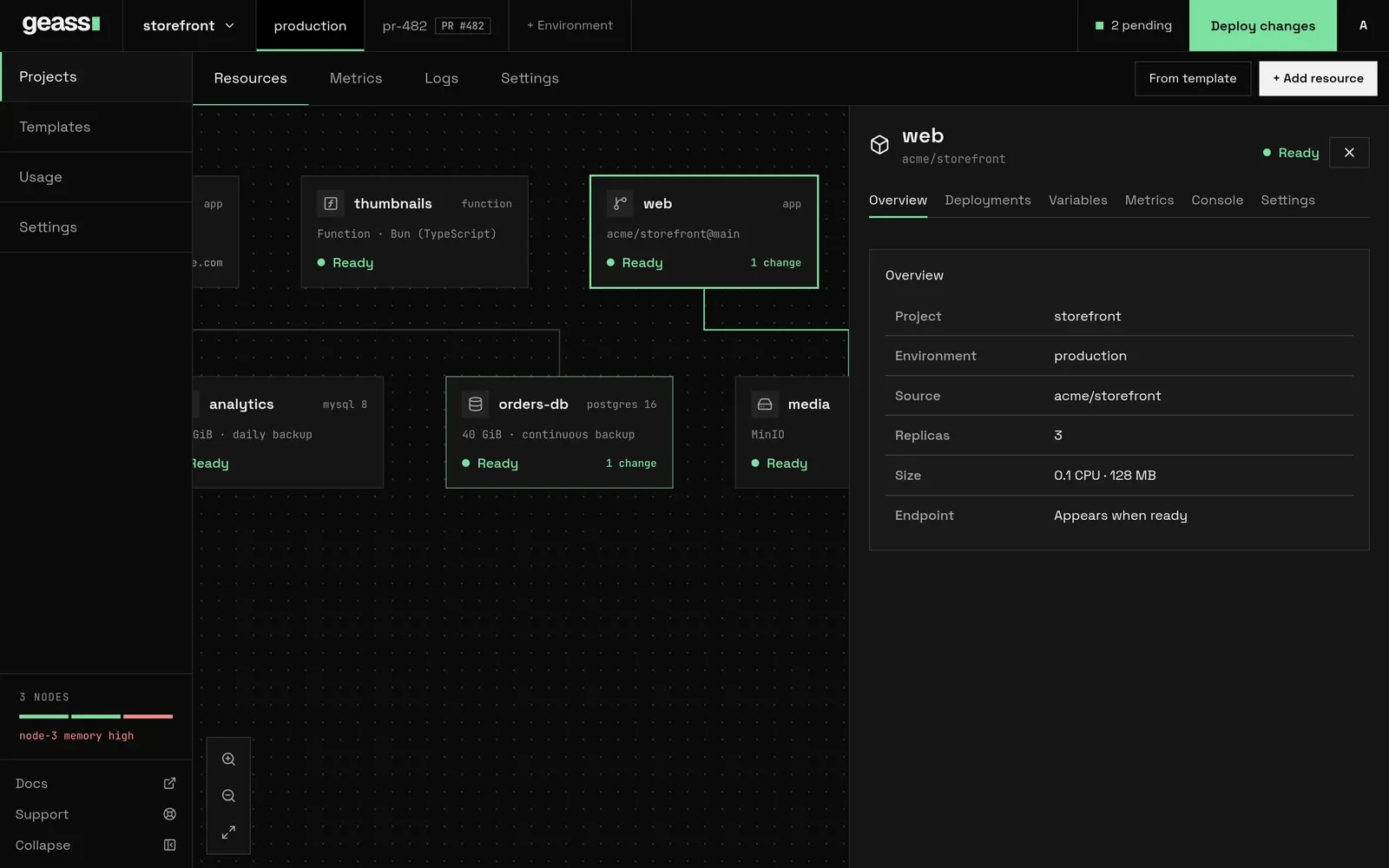 Screenshot with example data.
How projects and environments relate
Section titled “How projects and environments relate”| Project | Environment | |
|---|---|---|
| What it is | A named group. It has an ID such as proj-1a2b3c4d and a display name such as morning-beach. |
A named slot inside one project. A new project starts with one, called production. |
| What lives in it | Settings shared by every environment: region, required node tags, GitHub link, webhooks, backup storage, network access, pull request settings and API tokens. | Services, functions, databases, logical databases and buckets, plus its own shared variables. |
| Where it runs | Nowhere by itself. | In its own Kubernetes namespace, <project ID>-<environment>, for example proj-1a2b3c4d-production. |
| Deploys | Each environment keeps its own list of pending changes, and Deploy changes applies only the environment you are looking at. |
Two things follow from this:
- A resource belongs to exactly one environment. A service that runs in
productionandstagingis two separate services, each with its own ID, settings, variables and domain. Geass does not copy resources between environments for you, except for pull request environments and templates. - Environments of one project are not walled off from each other. Services in every environment of a project can reach each other privately, and other projects cannot reach them unless you allow it. See Network isolation.
Create a project
Section titled “Create a project”- Open Projects and choose New project.
- If your nodes are tagged with two or more regions, a region menu appears beside the button. Pick a region first, or leave it on Default region (…). See Scaling and placement.
Geass creates the project at once. It generates a name like morning-beach and an ID like proj-1a2b3c4d, creates
the production environment and opens the project. There is no form: you rename the project afterwards under
Settings → General → Name.
Only admins see New project. A read-only user (role viewer) can browse projects but cannot change anything.
The same thing through the API, with a workspace admin token (see Users and API tokens):
curl -X POST https://geass.example.com/api/projects/create \ -H "Authorization: Bearer $GEASS_TOKEN" \ -H "Accept: application/json"# {"project":"proj-1a2b3c4d"}Add -d region=eu-north to choose a region. Geass uses the cluster’s default region when you leave it out.
Environments
Section titled “Environments”The environment tabs
Section titled “The environment tabs”When you open a project, the top bar shows the project switcher, then one tab for each environment with a
+ Environment link after them (admins only). On the right are the pending-changes button, Deploy changes and your
account menu. The selected tab is the environment the canvas, Deploy changes and + Add resource act on. The
choice is kept in the address as ?environment=staging, so you can bookmark or share it.
A tab for a pull request environment carries a PR #n badge, where n
is the pull request number.
If you switch environments while a service or database panel is open, Geass closes the panel and shows the canvas of the new environment, because the same resource does not exist there.
Add an environment
Section titled “Add an environment”- Choose + Environment in the top bar. This opens the project’s Settings.
- Open Environments.
- Type a name in the field that shows
stagingas an example and choose New Environment.
The name must be lowercase letters, digits and hyphens, start and end with a letter or digit, and make the namespace
name <project ID>-<environment> at most 63 characters. With a 13-character project ID that leaves 49 characters. A
name that is already in use is refused (“environment already exists”). A project can have at most 100 environments.
A new environment is empty. Fill it with + Add resource, From template, or the pull request feature.
curl -X POST https://geass.example.com/api/projects/proj-1a2b3c4d/environments/create \ -H "Authorization: Bearer $GEASS_TOKEN" \ -H "Accept: application/json" \ -d environment=stagingDelete an environment
Section titled “Delete an environment”- Open the project’s Settings → Environments.
- Choose Delete on the environment. The button only appears when the project has more than one environment.
- Read the warning in Delete environment? and choose Delete environment.
Deleting an environment removes the environment itself, all of its services, databases, logical databases and buckets and their running workloads, its shared variables, and the API tokens that were limited to it. This cannot be undone. A project must keep at least one environment (“a project must retain at least one environment”), so the last one cannot be deleted.
Databases follow the same rules as when you delete them one at a time. See Backups and restore for what is kept.
curl -X POST https://geass.example.com/api/projects/proj-1a2b3c4d/environments/archive \ -H "Authorization: Bearer $GEASS_TOKEN" \ -H "Accept: application/json" \ -d environment=staging -d confirmName=stagingThe project canvas
Section titled “The project canvas”Resources is the first tab of a project. It shows every resource of the selected environment as a card on a canvas.
- Position. Services and functions sit in the top row. Databases, logical databases and buckets sit below, three to a row.
- Card. Each card shows an icon (a function, a GitHub branch for a repository service, or a box), the display
name, a short kind such as
app,functionorpostgres 16, and the source:acme/storefront@main, an image name, orFunction · Bun (TypeScript). The footer shows the status and either the public host or the number of pending changes. - Status. Ready, Setting up, Draft, Unavailable, Failed or Deleting. A New badge marks a resource that has never been deployed.
- Lines. A line joins a service to a database or bucket when the service has a reference to it, and a logical database to its server.
- Move and zoom. Drag the background to pan, scroll to zoom (45% to 160%), and use the three buttons for zoom in, zoom out and reset. Drag a card to move it. Card positions are remembered in your browser only, per project, so another person or browser sees the default layout.
- Open. Click a card to open its panel, docked on the right of the canvas. Use the close button in the panel to go back.
Admins also see From template and + Add resource above the canvas. + Add resource opens a search box with six choices: GitHub Repository, Database, Template, Docker Image, Function and Bucket. You can type to filter, or paste a GitHub repository link or an image name. Everything you add is created as a draft in the environment named at the bottom of the box (“Adding to staging”).
Pending changes and Deploy changes
Section titled “Pending changes and Deploy changes”Geass does not change what is running the moment you edit a form. New resources start as drafts, and most edits to a deployed resource are saved as pending changes. You apply them together.
The top bar shows the state of the selected environment:
- Up to date (disabled) means nothing is waiting.
- N pending counts the saved changes that are not deployed. A new draft counts 1, every saved variable change adds 1,
and pending settings count 1 however many fields they touch, so one resource can account for several. Choose it to
open a list of those resources with what changed, for example
Port: 8080 → 3000,Variable added: LOG_LEVELorFunction code updated. Choose a row to open that resource. Deploy all in the list does the same as Deploy changes. - Deploy changes applies every pending change in the selected environment. While it runs it reads Deploying…. A toast then reports “Deployed 1 change” or “Deployed N changes”, where N counts resources, not individual edits.
A resource can wait for a deploy for three reasons, which the list calls draft, settings and variables:
| Reason | Meaning |
|---|---|
| Draft | The resource was created but never deployed. Nothing runs yet. |
| Settings | You changed a setting that replaces the running pods (for example the port, the image, or the size). |
| Variables | You changed variables, secrets, references or attached shared variables. |
Some settings take effect as soon as you save them and never appear as pending: replicas, autoscaling, sleep when idle, a service’s domain, HTTPS and DNS check, metrics, watch paths, and database backup settings. The forms mark most of them Applies instantly. If you change a setting back to the value it had at the last deploy, its settings marker goes away.
Each deploy restarts a service’s pods, even when only a variable changed, so they pick up the new values.
Things to know:
- Deploy changes works on the selected environment only. Switch tabs and deploy again for the next one.
- It deploys services first, then databases, then buckets. If a resource does not fit in the cluster’s free capacity, the deploy stops there with the capacity message, and the resources before it stay deployed. See Usage and capacity.
- If nothing was deployed, you see “No pending changes were deployed. Check the environment filter and resource settings.”
- Read-only users do not see the deploy controls.
- A resource’s panel has no deploy button for its pending changes. Use Deploy changes or Deploy all. A service’s panel header shows Redeploy instead, and only while nothing is pending.
Deploy from a script with a project token, which deploys the environment the token belongs to:
curl -X POST https://geass.example.com/api/token/deploy \ -H "Authorization: Bearer $GEASS_PROJECT_TOKEN" \ -H "Accept: application/json"# {"deployed":2,"ok":true}With a workspace admin token, send the project and environment yourself:
POST /api/projects/proj-1a2b3c4d/deploy with -d environment=production.
The command line does the same. geass deploy -p proj-1a2b3c4d -e production --wait deploys everything pending in an
environment with a workspace token and waits until each service is ready. With a project token, name the services:
geass deploy web api --wait. An agent uses the deploy_app tool. See Command line and
MCP server.
Project settings
Section titled “Project settings”Open a project’s Settings tab. The page is called Project Settings and has these sections.
| Section | What it holds |
|---|---|
| General | Name, a Description field that is disabled in this release, Region, the Project ID with a copy button, Generate Template from Project, and Visibility (a note that the project is private; Change visibility is disabled). |
| Usage | What the project takes of the cluster, and a count of services, databases and buckets. See Usage and capacity. |
| Environments | The environments, New Environment, Delete, and the PR Environments settings. |
| Shared Variables | Variables that every service in an environment can receive. See Environment variables and secrets. |
| Webhooks | URLs Geass calls when a service deploys. See GitHub and builds. |
| Backups | Where the project’s databases keep backups. See Backups and restore. |
| Network | Which other projects may reach this one. See Network isolation. |
| Compliance | The node tags this project requires, such as hipaa. Everything the project runs stays on nodes that carry them. See Compliance tags. |
| Tokens | API tokens limited to this project. See Users and API tokens. |
| Integrations | Connect to GitHub or Disconnect, and a link to the cluster’s connectors. See GitHub and builds. |
| Danger | Manage Services and Delete Project. |
Name and region
Section titled “Name and region”Change Name and choose Update. Geass lowercases the name and turns spaces and underscores into hyphens, so
My Shop becomes my-shop, and it drops any other character, so Shop! becomes shop. A name that ends up empty is
refused (“project name is required”). The name is a label: the ID in the address bar never changes. Geass does not
check that a name is unique.
Region appears when the cluster has regions. It is where the project’s workloads run. It cannot change once the project has an in-cluster database, because the data sits on the nodes of that region (“This project has databases, and their data stays on the nodes of the region they were created in, so the region cannot change”). Without databases, you can change it, and services restart in the new region.
Save a project as a template
Section titled “Save a project as a template”Generate Template from Project saves one environment’s services and in-cluster databases as a reusable template. See Templates.
Delete a project
Section titled “Delete a project”Open Settings → Danger.
- Manage Services lists every resource in every environment with a Remove button. Removing one asks you to confirm in Delete resource permanently? and deletes only that resource.
- Delete Project deletes everything. Type the project name in the box (spacing and capitalization are ignored), choose Delete, then choose Delete permanently in the dialog.
Deleting a project removes:
- every service, function, database, logical database and bucket in every environment, and their running workloads;
- the namespaces of all environments, with their shared variables and secrets;
- the project’s webhooks and signing secrets, and its API tokens;
- the project’s own cloud connections (AWS or PlanetScale connections scoped to it) and its GitHub connection.
It does not remove the GitHub App from your GitHub account, the container images your builds pushed to your registry, or anything you created in AWS outside Geass. Databases follow the same rules as deleting them one by one: see Backups and restore and Object storage for what is kept.
curl -X POST https://geass.example.com/api/projects/proj-1a2b3c4d/settings/delete \ -H "Authorization: Bearer $GEASS_TOKEN" \ -H "Accept: application/json" \ -d confirmName=morning-beachWhat happens under the hood
Section titled “What happens under the hood”- A project is a
GeassProjectnamed by its ID in thegeass-systemnamespace. Itsspec.environmentsis the list of environments, andspec.displayNameis the name you see. - For each environment the project controller creates the namespace
<project ID>-<environment>, labelledgeass.dev/projectandgeass.dev/environment, with the network policies that isolate it. It also writes the environment’s shared variables into the ConfigMapgeass-shared-variablesand the Secretgeass-shared-secretsin that namespace. - Resources are
GeassApp,GeassDatabase,GeassLogicalDatabaseandGeassObjectStoreobjects ingeass-system, linked to the project and environment byspec.projectandspec.environment. Their workloads run in the environment’s namespace. spec.requiredTagson theGeassProjectlists the node tags every workload of the project must run on (see Compliance tags).spec.environmentsholds at most 100 entries.- A resource waits for deploy when its
geass.dev/pending-changesannotation is set, orspec.deploy.enabledis false. The operator runs a deployed resource from the snapshot ingeass.dev/last-deployed, with the instant settings applied on top, until you deploy again.
kubectl -n geass-system get geassprojectskubectl get namespaces -l geass.dev/project=proj-1a2b3c4dkubectl -n proj-1a2b3c4d-production get deploy,svc,ingresskubectl -n geass-system get geassapps -o custom-columns=NAME:.metadata.name,PROJECT:.spec.project,ENV:.spec.environmentTroubleshooting
Section titled “Troubleshooting”New project says “no cluster found”. The operator has no GeassCluster yet. Finish the install and wait for the
cluster to be ready. See Install.
New project fails with “No node is in the … region yet. Tag a node with it first”. You picked a region that no node carries. Tag a node first. See Scaling and placement.
Adding an environment fails with invalid environment. The name is not a valid DNS label. Use lowercase letters,
digits and hyphens, starting and ending with a letter or digit. A name that makes the namespace longer than 63
characters is refused with “project/environment namespace … is invalid”: keep it short.
Deploy changes is disabled. The environment has no pending changes (“Up to date”), you are signed in as a read-only user, or you are on a different environment tab than the resource you edited.
Deploy changes stops with “This service needs about … CPU”. The cluster has no room for the size you asked for. Pick a smaller size or add capacity. See Usage and capacity.
A change I saved is not running. Check the pending list. Settings and variables wait for a deploy. Only the settings marked Applies instantly take effect on save.
The Delete button for an environment is missing. It only shows when the project has two or more environments, and only to admins.
The project is deleted but a namespace is still there. The operator deletes the environment namespaces while it
removes the project. A namespace whose workload will not stop stays in Terminating. Run
kubectl get namespace -l geass.dev/project=<project ID> and look at what still runs in it.
Related
Section titled “Related”- Apps and Functions: what you put in an environment.
- Environment variables and secrets
- Pull request environments
- Templates
- Network isolation
- Users and API tokens