

Core concepts
This page defines the words the dashboard and the rest of these docs use, and how they fit together. Read it once, then use the links to go deeper. For the machinery behind the words, see How Geass works.
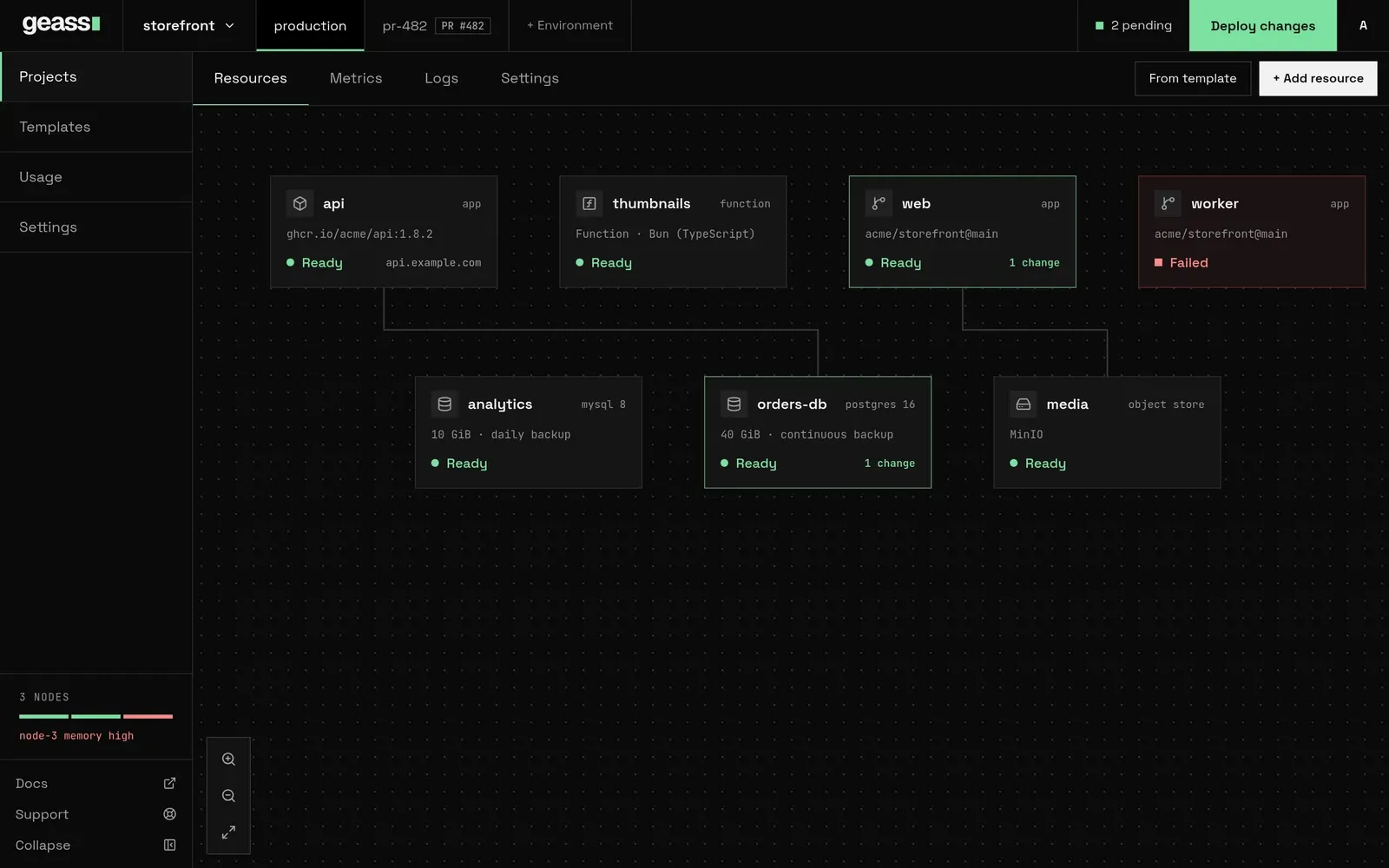 Screenshot with example data.
The shape of it
Section titled “The shape of it”cluster (your servers, one control plane + workers) |-- platform settings (domain, connectors, tokens, object storage, shared databases) |-- nodes (with optional region, site, tags) `-- projects `-- environments (production, staging ...) `-- resources: services, functions, databases, logical databases, bucketsCluster
Section titled “Cluster”The cluster is the set of servers that Geass manages. The installer creates it from one server, the control plane, and you can join more servers as workers. Inside Kubernetes it is a GeassCluster named default. It reports Ready once its add-ons are up. See Install Geass.
Projects
Section titled “Projects”A project groups the services, databases and buckets of one product, client or team. It has an ID such as proj-1a2b3c4d and a display name such as morning-beach, both generated when you choose New project. You can rename it under the project’s Settings → General; the ID never changes. A project carries settings that apply to all its environments: its region, the node tags it requires, its GitHub link, webhooks, backup storage, network access, and its API tokens. Projects are private to each other by default. See Projects and environments.
Environments
Section titled “Environments”An environment is an isolated copy of a project’s resources, such as production or staging. Every project starts with production. Each environment has its own Kubernetes namespace, <project-id>-<environment>, its own resources, its own list of pending changes and its own shared variables. A resource belongs to exactly one environment, so the same service in two environments is two services. The environment tabs at the top of a project switch between them. + Environment opens the project’s Settings. Choose Environments there, then New Environment. Pull request environments are temporary copies made for each pull request. See Pull request environments.
Resources
Section titled “Resources”A resource is anything you deploy into an environment. The dashboard and the Kubernetes objects use different names for them:
| In the dashboard | What it is | Kubernetes kind | Guide |
|---|---|---|---|
| Service | A container that runs from a Docker image or from a GitHub repository Geass builds | GeassApp |
Apps |
| Function | A service whose source is one file of Bun (TypeScript), Node.js or Python code. It is a server, or an event handler, and it can run on schedules | GeassApp with a function source |
Functions |
| Database | PostgreSQL, MySQL, Redis or SQLite in the cluster, or a record of an external database such as AWS RDS or PlanetScale | GeassDatabase |
Databases |
| Logical database | A database of its own, with its own login, on a database server that already runs | GeassLogicalDatabase |
Shared database servers |
| Bucket | S3-style storage, in the cluster’s MinIO or in AWS S3 | GeassObjectStore |
Object storage |
You add a resource with + Add resource or from Templates. A template is a ready-made set of resources that is added as drafts. See Templates. Every resource has an ID, generated when you create it and never changed, and a display name that you can edit. The ID is what you type to confirm a deletion, and what appears in Kubernetes names.
Resource kinds are described in the Resources overview.
Event functions and schedules
Section titled “Event functions and schedules”A function runs in one of two modes. In server mode (http, the default) your code is a program that listens on the port in PORT. In handler mode (event) your code only exports a handler(event) that returns the response, and Geass serves HTTP for it. A list on the function’s Code tab switches between Server (serves HTTP) and Handler (gets an event), and the command line chooses it with geass apps create --mode.
A schedule, which the API calls a trigger, calls a function on a cron expression in UTC. Each run is an HTTP POST to the function, and a function that is asleep is woken first. A function can have up to 8 schedules, and they start with the next deploy. Geass runs them as Kubernetes CronJob objects in the project’s namespace. See Functions and Command line.
Drafts, pending changes and Deploy changes
Section titled “Drafts, pending changes and Deploy changes”This is the workflow you meet first.
- A new resource is a draft. It exists in Geass and nothing runs.
- Changes to a resource are held as pending: they are saved, but the running resource does not change. The top bar shows
N pending, and its list names what changed in each resource. N counts saved changes, not resources: creating a draft counts one, and each variable you save adds another. - Deploy changes applies every pending change in the current environment at once. After it, the top bar reads Up to date.
- Some settings are live: a replica count, autoscaling, sleep when idle, a domain, HTTPS and metrics apply the moment you save them, because they do not replace the running container. The settings page marks them Applies instantly, and the dashboard says
Saved. Applied noworSaved. Deploy to apply them.
A resource that fails to deploy shows Failed and waits for Retry. See Deploy your first app for a walk through, and Projects and environments.
Sleep when idle
Section titled “Sleep when idle”A service can be set to Sleep when idle: after it has had no requests for a time you choose (1 to 1440 minutes in the dashboard, 5 by default), Geass stops it, and the next request to its public host starts it again. The request waits while the service starts. A sleeping service reserves no CPU or memory. It needs the serverless add-on (KEDA and its HTTP add-on), which is off until you turn it on for the cluster, and a public host, and it cannot also use CPU autoscaling. In Kubernetes the setting is spec.scaleToZero on the GeassApp. See Sleep when idle.
A node is one server in the cluster. The first is the control plane: it runs K3s’s server, the operator and the dashboard. Others are workers, joined over SSH with a GeassNode object. Geass shows nodes in the Nodes table on the Usage page, in the left rail, with their role, region, tags, CPU, memory, pressure and status (Ready, Not ready or Unschedulable). See Add servers.
Regions, sites and tags
Section titled “Regions, sites and tags”You can label nodes to decide where workloads run:
- A region groups nodes that are close together, such as
euorus. A project with a region runs only on nodes in it. You can choose a project’s region when you create it, and change it under the project’s Settings → General. It cannot change while the project has an in-cluster database, because the data lives on those nodes. The Usage page also holds a default region for projects that choose none. - A site is the provider or location inside a region, such as
hetzner-fsn1. Kubernetes calls it the zone. - A tag says what a node is for, such as
storageorgpu. A tag can be reserved, which keeps every workload that does not ask for the tag off the node. - A compliance tag is a reserved tag that a project can require, such as
hipaa. You mark it on the nodes that qualify (Usage, then Edit on a node), then choose it under the project’s Settings → Compliance. From then on everything the project runs, including its databases, buckets, builds and backup jobs, stays on nodes that carry the tag, and those nodes take no other project’s work. It controls where Geass puts work: it does not move data that is already elsewhere, and it does not protect a compromised node.
See Scaling and placement and Compliance node tags.
Connections and connectors
Section titled “Connections and connectors”Geass can use accounts you already have. Settings → Connectors shows four cards:
| Connector | Used for | Scope |
|---|---|---|
| GitHub | Deploying repositories, push-to-deploy, pull request environments. A GitHub App that Geass registers | The whole platform, then linked to each project |
| Cloudflare | DNS records and an optional tunnel for the dashboard and services | The whole platform |
| AWS | S3 buckets, database backups | One project: each connection is saved for a single project |
| PlanetScale | PlanetScale databases | One project |
AWS and PlanetScale credentials are called cloud connections (GeassCloudConnection). Every one is scoped to a single project and is usable only by it. The credentials are stored as Kubernetes Secrets in the cluster. See Cloud connectors.
Platform settings
Section titled “Platform settings”Settings in the left rail holds what applies to the whole platform:
| Page | What is on it |
|---|---|
| General | A summary: clusters, dashboard URL, healthy nodes, and links to the other pages |
| Usage | Cluster capacity, the nodes and their placement, usage per project, cluster metrics, the operator’s own health (Geass health), the default region and high availability readiness. See Usage and capacity |
| Domain | The dashboard’s public address. See Connect a domain |
| Connectors | The four connectors above |
| Tokens | Workspace API tokens |
| Object storage | The in-cluster MinIO server that holds in-cluster buckets |
| Databases | Shared database servers |
Roles and tokens
Section titled “Roles and tokens”People sign in to the dashboard as one of two roles: an admin can change everything, and a viewer can only read, with sensitive values withheld. Users are defined in a Kubernetes Secret.
Scripts, CI, the command line and AI agents use API tokens. A workspace token acts across the platform with one of three roles, which the dashboard calls the token’s Access:
| Access | Role | What it can do |
|---|---|---|
| Full access | admin |
Everything the dashboard can do |
| Read only, with logs | observer |
Read everything a viewer can, and also logs and the names of variables. It changes nothing. It is the role for a monitoring script or an agent that only watches. It is a token role only: a dashboard user cannot be an observer |
| Read only | viewer |
Read resources, with sensitive values withheld |
A project token can deploy, scale, roll back, edit variables and read logs in one environment of one project, and nothing else.
geass login does not ask for a password. It shows a code, and a signed-in admin approves it in the dashboard (the page Sign in the command line, at /device), choosing the access and an expiry. The command line is then handed a workspace token once. See Sign in to the dashboard, Command line and Users and API tokens.
Other terms you will meet
Section titled “Other terms you will meet”- Add-on: a platform component that Geass installs for you: cert-manager, metrics, Longhorn storage and log collection, and, only when you turn it on, the serverless add-on for sleep when idle.
- Command line:
geass, a program for your own machine that deploys and runs services through the dashboard’s/api/v1API.geass mcpis the same program as an MCP server for AI agents. See Command line and MCP server for AI agents. - Capacity gate: the check that refuses a deploy when the cluster lacks the CPU and memory it asks for. See Usage and capacity.
- Backup: a copy of a database in a bucket in your AWS account. See Backups and restore.
- Network isolation: each project is private to others unless you allow them. See Network isolation.
The Glossary lists every term with a link.